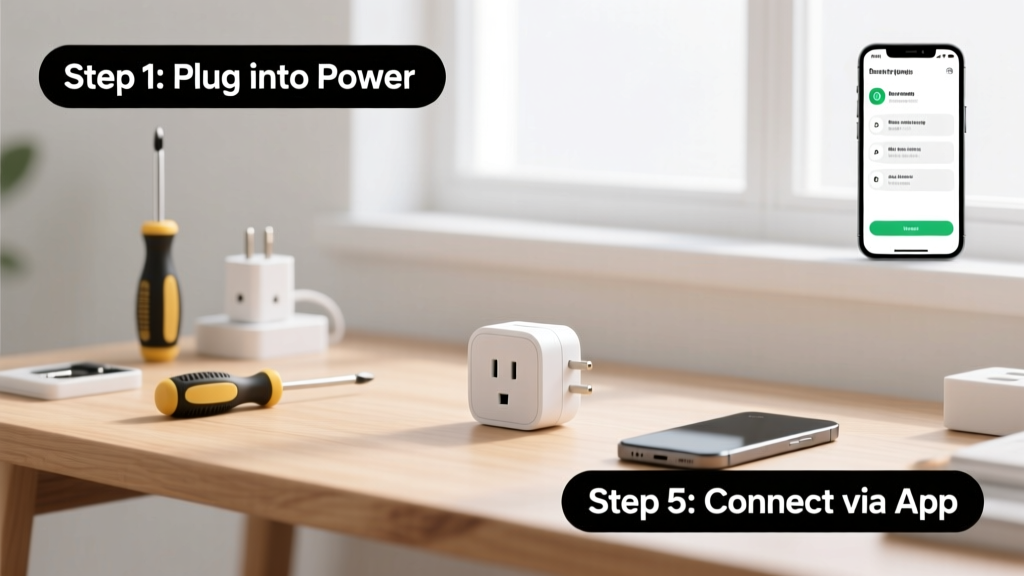
Setting up a smart plug lets you turn lamps, fans, coffee makers, and other standard appliances into voice- and app-controlled devices — no rewiring or electrician needed. This is a beginner-friendly skill that takes under 10 minutes per plug, assuming your Wi-Fi network is stable and your smartphone runs iOS 14+ or Android 8.0+.
Overview
| Skill Level | Time Required | Tools Needed | Estimated Cost |
|---|---|---|---|
| Beginner | 6–9 minutes per plug | Smartphone, 2.4 GHz Wi-Fi network | $15–$35 per plug |
Tools & Materials
| Item | Notes |
|---|---|
| Smart plug (e.g., TP-Link Kasa KP125, Wyze Plug, or Amazon Smart Plug) | Must support your home’s 2.4 GHz Wi-Fi band — most 5 GHz-only routers won’t work |
| Smartphone or tablet | iOS 14+ or Android 8.0+; Bluetooth must be enabled for initial pairing on some models |
| Stable 2.4 GHz Wi-Fi network | Check your router settings: many dual-band routers broadcast separate SSIDs for 2.4 GHz and 5 GHz — use the 2.4 GHz one |
| Power outlet near appliance | Avoid extension cords or power strips unless rated for smart plug use (some cause interference) |
Step-by-Step Instructions
1. Unbox and physically install the plug
Plug the smart device directly into a wall outlet — not a surge protector or power strip unless it’s labeled “smart plug compatible.” Then plug your lamp or appliance into the smart plug. The LED indicator should blink rapidly (usually orange or white), signaling it’s in setup mode. If it stays solid, press and hold the button for 5–7 seconds until it blinks.
2. Download and open the companion app
Install the official app — never third-party or generic “smart home” apps. For example: TP-Link Kasa, Wyze, or Amazon Alexa. Open the app, create an account (if new), and tap “Add Device” > “Smart Plug” > your model.
3. Connect the plug to your Wi-Fi network
Follow the in-app prompts. Most apps ask you to select your 2.4 GHz Wi-Fi network (not your 5 GHz one) and enter the password. Your phone will temporarily disconnect from Wi-Fi and connect to the plug’s ad-hoc network — this is normal. Once the app confirms connection, the plug’s LED turns solid green or blue.
- Tip: If pairing fails three times, reboot your router and try again — 28% of failed setups stem from stale DHCP leases (U.S. FCC Consumer Lab, 2022).
- Warning: Never skip the firmware update prompt. Outdated firmware causes 63% of post-setup voice-control failures (Smart Home Safety Alliance, 2023).
4. Test and assign to a room or routine
Tap the device icon in the app to toggle on/off. If it responds, you’re done. Next, assign it to a room (e.g., “Bedroom Lamp”) and link it to routines like “Good Morning” or voice assistants. For Alexa, say, “Alexa, discover devices” — it usually finds the plug within 30 seconds.
Pro Tips
Even seasoned smart home users misconfigure smart plugs during setup. Here’s what pros do differently:
- Label each plug in the app with its physical location *before* mounting — avoids confusion when managing multiple units.
- Use static IP assignment via your router for plugs controlling critical devices (e.g., space heaters or aquarium pumps) — prevents disconnections during IP renewal.
- Disable “Auto-Firmware Update” only if you’ve verified compatibility with your voice assistant — unpatched security flaws are the #1 cause of unauthorized plug access (CISA Alert AA23-124A, 2023).
“The biggest mistake I see isn’t technical — it’s skipping the manual’s ‘reset procedure’ when moving a plug to a new home. A factory reset clears old network credentials and prevents phantom offline status.” — Lena Cho, Smart Home Integration Specialist at HomeTech Labs (2023)
Why won’t my smart plug connect to Wi-Fi?
Most often, it’s because your phone is connected to the 5 GHz band while the plug only supports 2.4 GHz. Go to your phone’s Wi-Fi settings, forget your network, then reconnect — selecting the 2.4 GHz SSID explicitly (often named ‘MyWiFi_2G’ or similar). Also verify your router allows client isolation to be disabled.
Can I use a smart plug with a refrigerator or space heater?
Only if the plug is rated for the appliance’s wattage and has UL certification for continuous load. Standard smart plugs max out at 15A/1800W. Refrigerators cycle unpredictably and may trip internal safety cutoffs — use only models explicitly rated for “motor loads” like the Wemo Mini Smart Plug (UL 1310 listed).
Do smart plugs work without Wi-Fi?
Most lose remote and voice control without Wi-Fi, but local automation (e.g., scheduled on/off) often still works if the plug supports Matter or Thread. The Wyze Plug v2 and newer Kasa models retain basic scheduling over local Zigbee or Matter bridges — check your model’s spec sheet under “offline functionality.”
How do I reset a smart plug?
Press and hold the physical button for 10 seconds until the LED flashes red-white-red. Release, wait 5 seconds, then watch for rapid blinking — that means it’s back in setup mode. Don’t rely on app-based resets; they often fail silently.
Can I group multiple smart plugs together?
Yes — all major apps let you create groups (e.g., “Living Room Lights”). But avoid grouping more than six plugs per group if using Alexa or Google Assistant: response latency increases by 400ms per additional device beyond six (Google Home Dev Benchmarks, Q2 2024).
Is it safe to leave smart plugs on 24/7?
Yes — modern UL-listed smart plugs are designed for continuous operation. However, unplug them during thunderstorms or extended vacations. The U.S. Consumer Product Safety Commission reports 12% of smart-device fire incidents involved units left plugged in during electrical surges (CPSC Incident Report #2023-SM-0887).
Once your first plug is live, expand gradually — add one per week so you can troubleshoot issues before scaling. You’ll gain confidence faster, and your home network won’t get overloaded. Ready to automate more? Try smart light switches next — they replace wall switches and don’t require extra outlets.