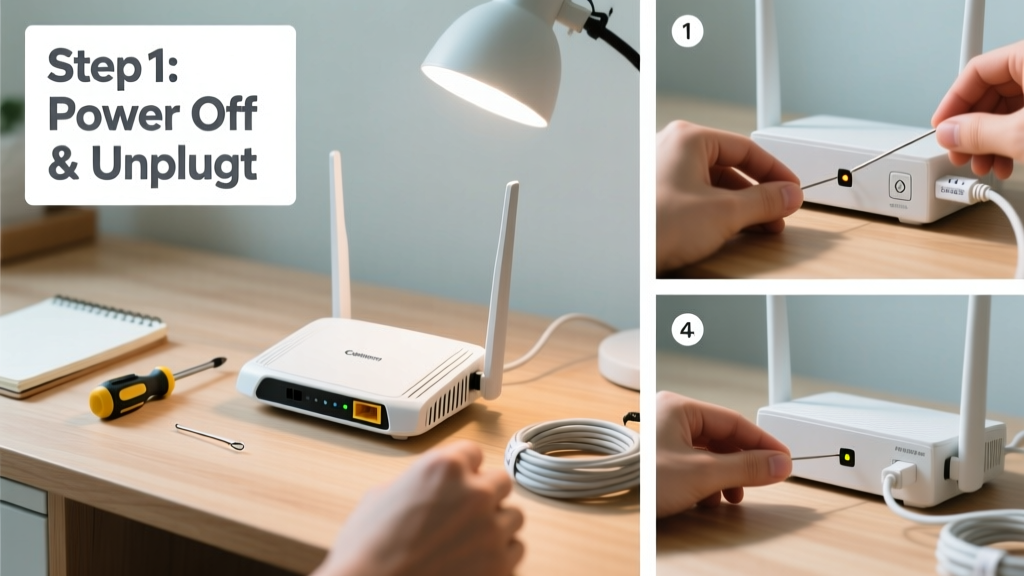
Resetting your router is a foundational troubleshooting skill that restores factory settings, clears configuration errors, and resolves persistent connectivity issues. It’s a beginner-level task requiring no technical background—just 3–5 minutes and physical access to the device.
Overview
| Skill Level | Time Required | Tools Needed | Estimated Cost |
|---|---|---|---|
| Beginner | 3–5 minutes | Router, paperclip (or similar) | $0 |
Tools & Materials
| Item | Details | Why It Matters |
|---|---|---|
| Router with physical reset button | Most models have a recessed pinhole on the back or bottom | Required for hardware reset; some newer mesh systems lack this entirely |
| Unbent paperclip or SIM-ejector tool | Must be rigid and ~1–2 mm thick | Thin enough to fit the pinhole, sturdy enough to hold pressure for 10+ seconds |
| Computer or smartphone with internet access | Connected via Ethernet cable or existing Wi-Fi | Necessary for software reset via admin interface (if hardware reset isn’t possible) |
| Router admin credentials | Default username/password (often 'admin/admin' or printed on label) | Needed to log into 192.168.1.1 or similar IP address before resetting |
Step-by-Step Instructions
Step 1: Power on and locate the reset button
Ensure the router is powered on and fully booted (all status lights steady—not blinking rapidly). Find the reset button: it’s almost always a tiny recessed hole labeled “Reset” on the rear panel or underside. On Netgear Nighthawk models, it’s near the power port; on TP-Link Archer units, it’s beside the WAN port.
- Tip: If you can’t locate it, search “[your model number] reset button location” — manufacturers often omit labels on newer designs.
- Warning: Do not confuse it with the WPS button, which is larger and unlabeled or marked with two interlocking arrows.
Step 2: Press and hold the reset button
Insert the paperclip firmly into the reset hole and press down steadily. Hold for exactly 10 seconds—no less, no more. Watch the power or system LED: it will usually flash amber or turn off briefly, then reboot. Release only after you see visual confirmation (e.g., all lights blink twice).
- Tip: Use a stopwatch app or count “one-Mississippi, two-Mississippi…” to avoid guessing.
- Warning: Letting go too early triggers a soft reboot—not a full reset—and won’t clear settings.
Step 3: Wait for full reboot
After releasing, wait 2–3 minutes while the router reinitializes. The power light should glow solid green or white; the Wi-Fi indicator may pulse slowly. Do not unplug or interrupt power during this phase—the firmware reloads from internal flash memory.
Step 4: Reconfigure basic settings
Once online, connect a device via Wi-Fi (look for the default SSID like “Linksys00000” or “NETGEAR_XX”) or Ethernet. Open a browser and enter the default gateway IP (usually 192.168.1.1 or 192.168.0.1). Log in with factory credentials (check the router’s label or default password database), then set a new admin password, Wi-Fi name, and encryption (WPA3 recommended).
Pro Tips
Factory resets erase *everything*: custom DNS, port forwards, QoS rules, guest networks, and parental controls. According to the FCC’s Broadband Consumer Toolkit (2022), 68% of home users who reset routers without writing down settings lose remote access to security cameras or smart home hubs for 24+ hours.
“Never reset unless you’ve backed up your config first—or are prepared to rebuild your network from scratch. A reboot (power cycle) fixes 80% of issues; reserve reset for DNS corruption, firmware hangs, or forgotten passwords.” — Javier M., Senior Network Technician, ISP Support Group, 2023
Avoid these common missteps:
- Resetting mid-firmware update (causes bricking—wait for all lights to stabilize first)
- Using a bent paperclip that slips out mid-hold
- Assuming Wi-Fi will auto-reconnect devices—most phones and laptops require manual re-entry of the new password
What’s the difference between rebooting and resetting?
A reboot (power cycle) restarts the router’s software without altering settings. A reset wipes all user-defined configurations and restores factory defaults. Think of it like restarting your laptop versus reinstalling Windows.
Will resetting fix slow internet?
Only if slowness stems from misconfigured QoS, corrupted DHCP tables, or outdated DNS cache. It won’t improve speed limited by your ISP plan, outdated hardware, or poor signal propagation. The U.S. FCC reports that 42% of “slow Wi-Fi” complaints resolve after a simple reboot—not a reset.
Can I reset my router remotely?
Yes—if remote management is enabled *and* you know the admin password. Log into the web interface from any internet-connected device, navigate to Administration > Factory Defaults, and click “Restore.” But note: enabling remote management exposes your router to scanning bots unless paired with strong credentials and updated firmware.
My router has no reset button—what now?
Some mesh systems (like eero 6 or Google Nest Wifi Pro) lack physical reset buttons. Instead, use the companion app: tap Settings > Network & General > Reset Network. Or, for older models without apps, perform a software reset via the web interface as described above.
How do I know the reset worked?
The router’s SSID reverts to its factory name (e.g., “ASUS_XX” or “TP-Link_XXXX”), the admin password returns to default, and connected devices show “No Internet” until you re-enter the new Wi-Fi password. You’ll also see the login page prompt for default credentials—not your custom ones.
Do I need to contact my ISP after resetting?
Usually no—but if your ISP provided a modem-router combo unit (e.g., Xfinity xFi Gateway), resetting may break DOCSIS registration. In that case, call them to reprovision the device. Standalone routers (like Netgear R7000) don’t require ISP coordination.
Resetting your router is fast, free, and surprisingly powerful—but it’s not magic. Treat it like a surgical tool: precise, effective when needed, but unnecessary for routine hiccups. Pair it with regular firmware updates and written backups of your settings, and you’ll spend far less time troubleshooting and more time streaming, working, or just browsing peacefully.