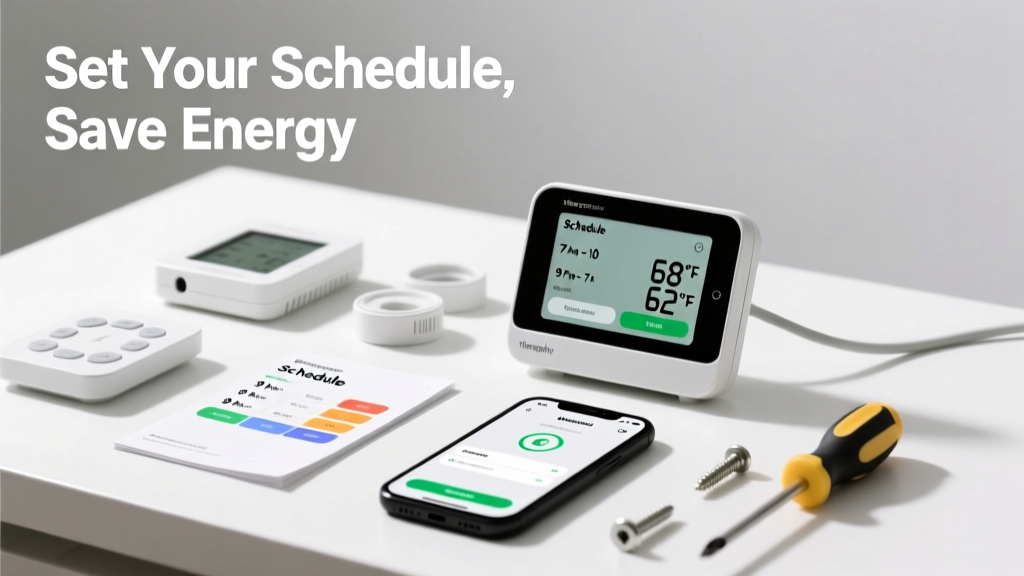
Programming your thermostat schedule lets you automatically adjust temperatures when you’re asleep or away—cutting energy waste without sacrificing comfort. This is a beginner-level skill that takes 12–20 minutes, depending on your model and whether you’re setting weekday/weekend profiles.
Overview
| Skill Level | Time Required | Tools Needed | Estimated Cost |
|---|---|---|---|
| Beginner | 12–20 minutes | Thermostat, smartphone (for smart models), user manual | $0 (no cost if device is already installed) |
Tools & Materials
| Item | Notes | When It’s Required |
|---|---|---|
| User manual (printed or PDF) | Model-specific button sequences and menu paths vary widely | All models |
| Smartphone with Wi-Fi | Necessary for initial setup of Nest, Ecobee, or Sensi thermostats | Smart thermostats only |
| Pen and paper | Helpful for sketching your ideal schedule before programming | Recommended for all users |
| AA batteries (2) | Required for battery backup on most programmable thermostats; check voltage with multimeter if screen dims | Non-WiFi Honeywell, Emerson, or Lux models |
Step-by-Step Instructions
1. Power on and access schedule mode
Press the Menu or Settings button until you see “Schedule,” “Program,” or “Weekly Schedule.” On older Honeywell models like the RTH2300B, press Set twice. For Nest Learning Thermostat, tap the ring to wake it, then scroll to Settings > Schedule. If the screen is blank, check battery level first—low power prevents programming.
2. Select days and time slots
Choose between 5+2 (Mon–Fri / Sat–Sun), 5+1+1 (Mon–Fri / Sat / Sun), or 7-day scheduling. Most households use 5+2. Then assign time blocks: typically four per day—Wake (6:30 a.m.), Leave (8:30 a.m.), Return (5:00 p.m.), Sleep (10:30 p.m.). According to the U.S. EPA, lowering heat by 7–10°F for 8 hours daily saves up to 10% annually on HVAC costs.
3. Set temperatures for each slot
For heating season: Wake (68°F), Leave (62°F), Return (68°F), Sleep (65°F). For cooling: Wake (78°F), Leave (85°F), Return (78°F), Sleep (80°F). Avoid setting extremes—jumping more than 3°F per hour stresses compressors. Use the up/down arrows or touchscreen sliders. Confirm each entry with Next or Save.
4. Repeat for all selected days and test
After finishing Monday, select “Copy to Weekdays” if available—or manually repeat for Tue–Fri. Then set weekend profiles separately. Once complete, exit the menu and watch the display for 15 minutes: verify it transitions from “Wake” to “Leave” temperature at the correct time. If not, recheck clock sync—many thermostats default to military time or require AM/PM toggle.
Pro Tips
Seasonal adjustments matter more than perfect timing. The Department of Energy recommends shifting temps 8°F during unoccupied periods—but only if your system can recover comfortably before you return. A common mistake is over-programming: adding too many time slots (e.g., 7 per day) increases error risk and offers negligible savings. Stick to four slots unless your routine varies hourly.
“Most homeowners set schedules once and never revisit them—even as work hours, school drop-offs, or bedtime routines change. Reassess every season. That single habit accounts for nearly half of all programmable thermostat energy savings.” — ENERGY STAR Residential HVAC Guide, 2022
- Disable ‘Hold’ or ‘Vacation Mode’ before programming—it overrides scheduled temps
- If using a smart thermostat, enable geofencing instead of strict schedules for irregular days
- Label physical buttons with tape if icons fade—especially on units older than 5 years
Why does my thermostat skip the scheduled temperature change?
This usually means the internal clock is off or daylight saving time wasn’t auto-updated. Reset the date/time in Settings > System > Clock. On non-smart models, replace batteries first—low voltage causes erratic behavior. Also check if ‘Smart Recovery’ or ‘Adaptive Recovery’ is enabled; these features delay changes to hit target temps precisely, making shifts appear late.
Can I program different schedules for heating vs. cooling?
Yes—but only on dual-fuel or advanced programmable thermostats like the Ecobee SmartThermostat or Honeywell T9. In the schedule menu, look for Heat Schedule and Cool Schedule tabs. Basic models (e.g., Honeywell RTH221) use one schedule for both modes, so choose conservative setpoints that work year-round.
My smart thermostat won’t save my schedule after rebooting. What’s wrong?
This points to firmware or cloud sync failure. Force-close the app, restart your phone, then re-open. In the app, go to Settings > Software Update—outdated firmware (especially versions prior to 5.2.1 on Nest v3) corrupts schedule storage. If updating doesn’t help, perform a factory reset: hold the center button for 10 seconds until “Reset?” appears. Then re-pair via Wi-Fi—not Bluetooth.
How do I override a scheduled temperature temporarily?
Press the up/down arrows to adjust temp manually—most thermostats hold that change for 2 hours (Nest) or until next scheduled slot (Ecobee). To cancel early, tap Cancel Hold or press Run Schedule. Avoid using ‘Permanent Hold’ unless you’re away for >3 days—it disables all automation.
Is it worth programming if I work from home full-time?
Absolutely—but optimize differently. Set ‘Leave’ to 0 minutes and raise ‘Sleep’ temp by 2°F since you’re likely active later. Add a midday ‘Lunch Break’ slot (12:30–1:30 p.m.) at 64°F (heat) or 82°F (cool) for 60 minutes. Studies show remote workers save 5–7% more than office commuters because they control occupancy patterns tightly—calibrating your thermostat ensures those settings reflect real room conditions.
What if I have a heat pump? Do schedules work the same way?
No—heat pumps respond slower and risk auxiliary heat lock-in if set too aggressively. Never set ‘Leave’ lower than 60°F in winter or higher than 88°F in summer. Use ‘Heat Pump Mode’ in settings, and avoid rapid swings: limit changes to ≤2°F per hour. For best results, pair with a heat pump–compatible thermostat like the Emerson Sensi Touch.
Once your schedule runs smoothly for three days, note the actual indoor temps at each slot using a standalone thermometer—compare them to your setpoints. Small variances are normal, but consistent 3°F+ gaps suggest airflow issues or sensor placement problems. Revisit your thermostat sensor cleaning guide and ensure it’s not near drafts, sunlight, or electronics. Consistent programming pays off: households that maintain schedules year-round average $180 less in annual HVAC bills, per the ACEEE’s 2023 Home Energy Survey.