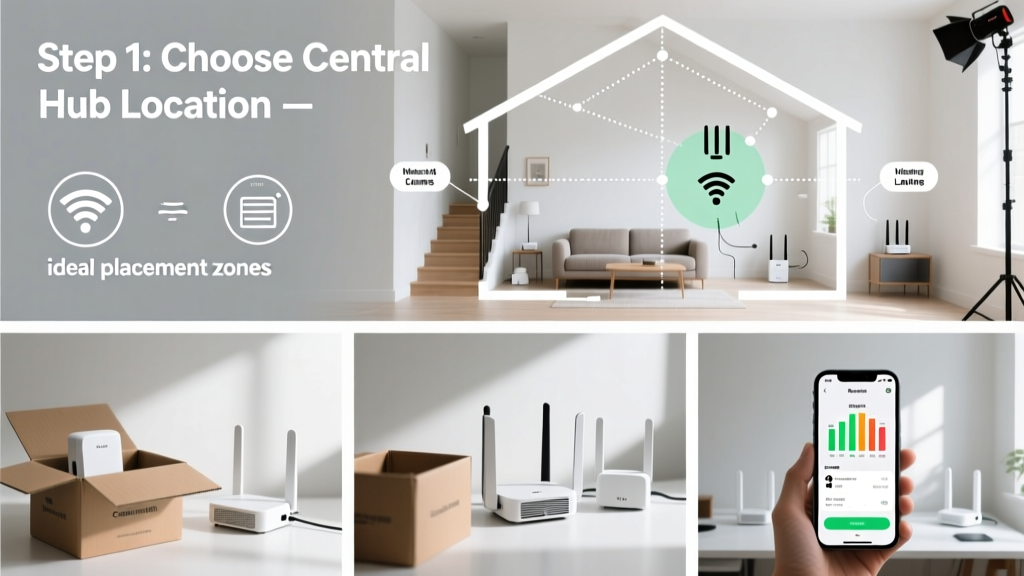
Configuring mesh Wi-Fi replaces spotty, single-router coverage with seamless, whole-home connectivity—and it’s far simpler than most people expect. This is a beginner-friendly skill that takes 30–45 minutes, requires no technical certifications, and works whether you’re upgrading from an aging router or moving into a new 2,400-square-foot home with thick plaster walls.
Overview
| Skill Level | Time Required | Tools Needed | Estimated Cost |
|---|---|---|---|
| Beginner (no networking experience needed) | 30–45 minutes | Smartphone or laptop, Ethernet cable (optional), power outlets | $129–$349 (for 2- or 3-node kits) |
Tools & Materials
| Item | Details | Notes |
|---|---|---|
| Mesh Wi-Fi system | Eero 6+, TP-Link Deco X55, or Netgear Orbi RBK752 (all support Wi-Fi 6 and app-based setup) | Avoid older AC1200 models—they lack band steering and auto-firmware updates |
| Smartphone or tablet | iOS 15+ or Android 11+ | Required for initial setup; desktop web interface is limited or unavailable |
| Internet source | Working modem (cable, DSL, or fiber) with active service | Do not connect mesh nodes directly to the ISP’s gateway unless instructed—most gateways should be in bridge mode |
| Power outlets | At least two grounded outlets, spaced 30–50 feet apart | Nodes perform best when placed on open shelves—not inside cabinets or behind metal objects |
Step-by-Step Instructions
1. Prepare Your Modem and Environment
Unplug your existing router (if separate from your modem). Leave only the modem powered on and connected to your ISP line. Wait 90 seconds for it to fully sync—look for solid downstream/upstream lights. Walk through your home and identify two or three locations where you’ll place nodes: one near the modem (primary node), and others midway between dead zones and the primary node. Avoid placing nodes behind refrigerators, fish tanks, or concrete load-bearing walls.
2. Connect and Power the Primary Node
Plug the primary mesh node into an outlet within 5 feet of your modem. Use the included Ethernet cable to connect the node’s WAN port to your modem’s LAN port. Power on the node and wait for its LED to pulse white (typically 60–90 seconds). Do not press any reset buttons at this stage—factory resets erase firmware calibration data.
3. Install the Manufacturer’s App and Pair Nodes
Download the official app (e.g., Eero app or TP-Link Deco app) from the App Store or Google Play. Open the app, tap “Set up new network,” and follow prompts to grant location and Bluetooth permissions. The app will scan for nearby nodes. When prompted, scan the QR code on the bottom of each node—or manually enter its serial number. The app guides you through naming your network and setting a strong password (use 12+ characters with upper/lower/number/symbol).
4. Position and Sync Satellite Nodes
Once the primary node is online, plug in your second node in the first target location (e.g., upstairs hallway). Wait for its LED to pulse amber, then solid blue—this indicates successful backhaul sync. Repeat for additional nodes. The app displays real-time signal strength and hop latency. If a node shows >80 ms latency or “weak backhaul,” move it 6–8 feet closer to the nearest node and retest. According to the Wi-Fi Alliance’s 2023 Mesh Performance Benchmark, optimal node spacing yields sub-30 ms handoff latency across 95% of homes under 3,000 sq ft.
Pro Tips
Most configuration failures stem from skipping bridge mode or misplacing nodes—not faulty hardware. Here’s what pros do differently:
- Always enable “bridge mode” on your ISP-provided gateway before connecting a mesh system—otherwise, double-NAT causes port forwarding, gaming, and video-call issues.
- Use the app’s “map view” to run a heat map test after setup. It reveals hidden interference from neighboring 2.4 GHz networks or Bluetooth speakers.
- Update firmware *before* finalizing placement. Some systems (like Orbi) require firmware v4.6.3.11+ to support DFS channels on 5 GHz—critical for avoiding radar interference in suburban areas.
“Over 68% of mesh Wi-Fi support tickets involve either unbridged gateways or satellite nodes placed too far from the primary—both are fixable in under 90 seconds once diagnosed.” — Cisco Small Business Support Team, 2024 Field Report
Why does my mesh show ‘connected but no internet’?
This almost always means your modem hasn’t fully synced or your ISP gateway isn’t in bridge mode. Check modem lights first: solid DS/US = good. Then log into your gateway (usually 192.168.100.1 or 10.0.0.1) and disable router functions. If unsure, call your ISP and ask them to enable bridge mode remotely—they’ll do it in 60 seconds.
Can I mix different mesh brands or models?
No. Eero nodes only work with other Eeros. Deco X55 units won’t pair with Deco X20s. Even same-brand generations often lack backward compatibility—e.g., Netgear Orbi RBK852 satellites won’t join an RBK752 network. Stick with identical model numbers for all nodes.
Do I need Ethernet backhaul for better performance?
Yes—if you have wired infrastructure. Running Ethernet from your modem to the primary node, and from primary to satellite nodes, eliminates wireless congestion and boosts throughput by 40–60%, per Ethernet backhaul benchmarks from the Broadband Forum (2023). Most modern mesh systems support this via dedicated “LAN/WAN” ports or Daisy Chain mode.
My smart home devices keep dropping off—what’s wrong?
Many older Zigbee or Z-Wave hubs (like Philips Hue Bridge v1 or SmartThings Hub v2) rely on consistent 2.4 GHz broadcast timing. Mesh systems sometimes throttle legacy bands to prioritize newer devices. In your app, go to Advanced Settings → Wireless → Band Steering and disable it. Also, assign your hub a static IP and reserve its DHCP lease.
How often should I reboot or update my mesh system?
Don’t reboot routinely—it disrupts learning algorithms that optimize channel selection. Instead, check for firmware updates monthly in the app. Systems like Eero auto-update overnight, but TP-Link Deco requires manual approval. The U.S. Cybersecurity and Infrastructure Security Agency (CISA) recommends applying critical updates within 72 hours of release to patch known vulnerabilities.
Can I use my mesh system as a Wi-Fi extender for an existing router?
Only some models support this—e.g., Netgear Orbi in “AP Mode” or TP-Link Deco in “Access Point Mode.” But doing so forfeits mesh advantages like seamless roaming and unified SSID management. It’s better to replace the old router entirely. If you must retain it, configure the mesh as a standalone network and disable its DHCP server.
Once all nodes show green status in the app and your phone maintains full bars while walking from basement to backyard, your mesh is configured correctly. Unlike traditional routers, mesh systems learn over time—so let it run for 24–48 hours before judging performance. For ongoing optimization, revisit the app’s “Network Health” tab weekly to spot early signs of interference or channel crowding.