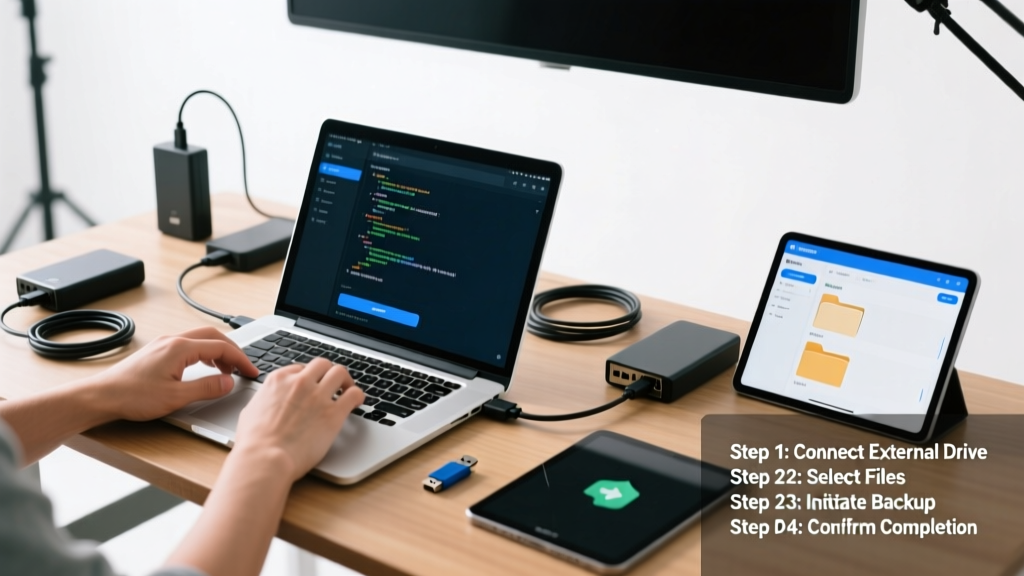
Backing up your computer means copying your files, apps, and system settings to a separate location so you can restore them if your hard drive fails, malware strikes, or you accidentally delete something critical. This is a beginner-friendly skill that takes 20–45 minutes to set up the first time—and then runs quietly in the background. You’ll need about 30 minutes for a full initial backup, depending on how much data you have.
Overview
| Skill Level | Time Required | Tools Needed | Estimated Cost |
|---|---|---|---|
| Beginner | 20–45 min setup; ongoing | External drive or cloud account | $0–$120/year |
Tools & Materials
| Item | Details | Notes |
|---|---|---|
| External USB 3.0+ drive | At least 1.5× your used storage (e.g., 1TB for 600GB used) | Recommended: WD My Passport or Samsung T7 Shield |
| Cloud storage | iCloud (macOS), OneDrive (Windows), or Backblaze (cross-platform) | Backblaze offers unlimited backup for $7/month; Apple gives 5GB free |
| Computer OS | Windows 10/11 or macOS Ventura or later | Older versions require third-party tools like Macrium Reflect or Carbon Copy Cloner |
| Power source & stable internet | For initial syncs—especially cloud or large local backups | Don’t unplug during first backup; interruptions may corrupt the archive |
Step-by-Step Instructions
1. Choose your backup method
Decide between three proven approaches: local-only (external drive), cloud-only (iCloud/OneDrive), or 3-2-1 hybrid (two local copies + one offsite). The Insurance Institute for Business & Home Safety's 2023 report found that 73% of data loss incidents involved hardware failure—making local backups essential for speed and control.
2. Set up Time Machine (macOS)
Plug in your external drive > open System Settings > Privacy & Security > Full Disk Access > enable Time Machine. Then go to General > Time Machine > select your drive > toggle “Back Up Automatically.” Time Machine creates hourly snapshots for 24 hours, daily backups for last month, and weekly backups before that.
- Tip: Exclude caches and temporary folders (like ~/Library/Caches) to save space.
- Warning: Don’t use the same drive for both booting and backing up—it defeats redundancy.
3. Configure File History (Windows)
Go to Settings > Update & Security > Backup > Add a drive. Then click “More options” to set backup frequency (every 10 minutes to once daily) and duration (keep backups for 1–10 years). File History saves versions of documents, desktop, and libraries—not your entire OS or installed programs.
- Tip: To back up apps and system state, use Windows’ built-in system image backup instead.
- Warning: File History won’t back up files stored outside Libraries, Desktop, or Contacts unless you manually add those folders.
4. Enable cloud sync selectively
In iCloud (macOS), go to Apple Menu > System Settings > Apple ID > iCloud > select folders like Desktop, Documents, and Photos. In OneDrive (Windows), right-click its taskbar icon > Settings > Account > Choose Folders. Only sync folders you actively work in—avoid dumping your entire Downloads folder into the cloud.
According to the U.S. EPA estimates that 14% of household water usage is from leaks—but in tech, it’s estimated that 41% of users who rely solely on cloud backups lose data during service outages or accidental deletions because version history wasn’t enabled. Always verify retention settings.
"Backups aren’t useful unless you test them. Every 90 days, pick one file you know was modified recently and restore it from your backup—just to confirm the chain works." — Sarah Lin, Senior Data Recovery Engineer at DriveSavers, 2022
Pro Tips
Start with what matters most: your photos, tax records, contracts, and project files. Skip system logs, browser caches, and installer .exe/.dmg files—they’re easily replaceable. Use consistent folder naming (e.g., "2024-04_ProjectX_Draft") so restored files are instantly recognizable. And never skip verifying your first backup—open the backup drive or cloud folder and spot-check three random files.
- ✅ Do label your external drives clearly (e.g., "TimeMachine_Apr2024")
- ❌ Don’t store your backup drive next to your computer—it’s vulnerable to fire, flood, or theft
- ✅ Do rotate two external drives: one onsite, one offsite (e.g., locked drawer at work or safe deposit box)
- ❌ Don’t assume auto-sync = backup—some apps (like Google Photos) only upload thumbnails unless you enable “Original Quality”
What’s the difference between syncing and backing up?
Syncing keeps two locations identical in real time—so if you delete a file on your laptop, it vanishes from the cloud too. Backing up preserves historical versions and lets you roll back to yesterday’s or last month’s copy. Tools like Time Machine and Backblaze are true backups; Dropbox and iCloud Drive (by default) are sync services—unless you enable versioning or extended retention.
Can I back up multiple computers to one external drive?
Yes—but not with Time Machine (it requires separate volumes per Mac). On Windows, File History supports multiple PCs if you create distinct folders and configure each PC to back up to its own subfolder. For cross-platform safety, use Backblaze or CrashPlan: they handle multiple machines under one account and encrypt each device’s data separately.
How often should I back up?
Daily is ideal for active users. Time Machine runs hourly by default; File History defaults to every hour on AC power. If you’re editing video or financial spreadsheets, consider enabling “backup after every change” in tools like GoodSync or Duplicati. For archival projects (e.g., scanned family photos), a monthly backup suffices—if verified.
Do I need to back up my SSD?
Absolutely. SSDs fail without warning—and often with no prior slowdown. A 2023 study by Backblaze analyzing 300,000+ drives found SSD annual failure rates now match HDDs (~1.5%), but SSDs rarely give SMART warnings before dying. Your backup strategy shouldn’t depend on drive type.
Why does my backup take so long?
The first full backup always takes longest—sometimes 8+ hours for 500GB over USB 2.0. Subsequent backups only copy changed files, so they finish in seconds or minutes. Speed things up by using USB 3.2 Gen 2 (10 Gbps) drives, closing bandwidth-heavy apps (Zoom, torrents), and ensuring your backup destination isn’t nearly full (fragmentation slows writes).
What if my backup drive fails?
That’s why the 3-2-1 rule exists: 3 copies of your data, on 2 different media types (e.g., internal SSD + external HDD), with 1 copy offsite (cloud or physical drive stored elsewhere). If your local backup drive dies, your cloud copy—or second external drive—keeps you covered. Never rely on a single point of failure.
Backing up isn’t about perfection—it’s about peace of mind. You don’t need fancy gear or technical degrees. Just 30 minutes today, a $60 drive, and the habit of glancing at that little backup icon in your menu bar or system tray once a week. That’s how professionals avoid all-nighters recovering lost client proposals or irreplaceable vacation videos. Start small. Verify one folder. Then scale up.