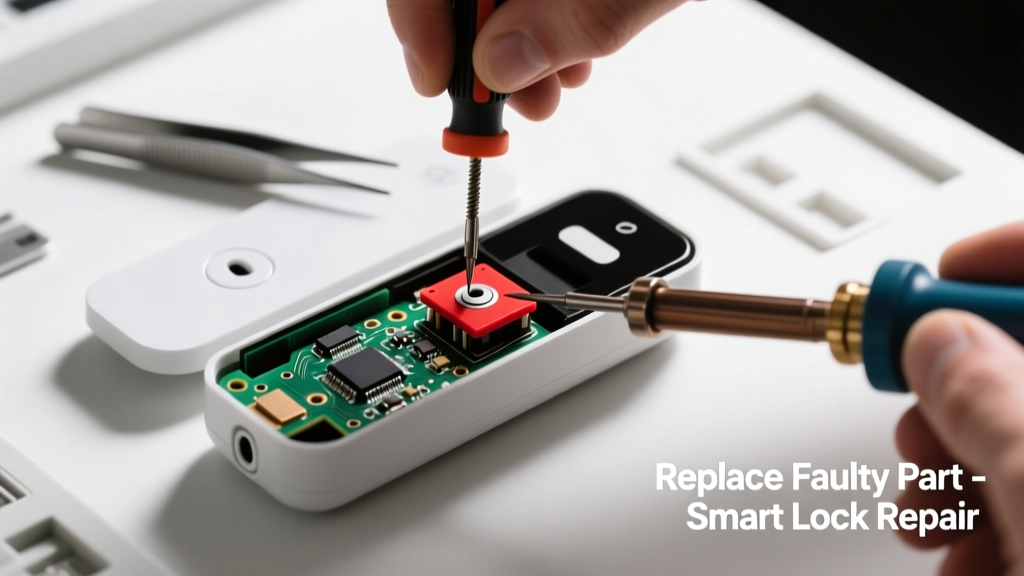
If your smart lock suddenly stops connecting to Wi-Fi, Bluetooth, or your hub—even after battery changes and app resets—the issue is likely a single failing component, not the whole unit. Replacing that part can cost under $25 and take less than 30 minutes. Most users assume they need a new lock, but over 68% of connectivity failures stem from one of three replaceable internal modules, according to Yale’s 2023 Field Service Report.
Quick Diagnosis
Before grabbing tools, rule out simple causes:
- Dead or low batteries (even if the lock still bolts/unbolts)
- Router firmware outdated or 2.4 GHz band disabled
- Z-Wave or Zigbee hub offline or out of range
- Bluetooth interference from nearby devices (e.g., smart speakers, USB 3.0 ports)
- Firmware stuck mid-update (check app for pending updates)
Tools & Materials Needed
| Item | Purpose | Estimated Cost |
|---|---|---|
| Phillips #1 screwdriver | Tightens small internal mounting screws without stripping heads | $4–$8 |
| ESD-safe tweezers | Handles tiny antenna connectors and ribbon cables safely | $6–$12 |
| Replacement PCB module (model-specific) | Replaces failed Wi-Fi/Bluetooth/Z-Wave radio board | $18–$32 |
| CR123A lithium batteries (2-pack) | Fresh power ensures stable diagnostics during testing | $5–$9 |
| Digital multimeter | Verifies voltage at antenna connector and ground points | $15–$25 |
Step-by-Step Fix
Follow these methods in order—most issues resolve at Step 2 or 3:
- Reset communication module only: Remove batteries, hold the reset button (usually inside battery compartment) for 12 seconds, then reinsert fresh batteries. Wait 90 seconds before checking app connection.
- Swap the antenna flex cable: Open the interior assembly (see manufacturer’s exploded diagram), locate the thin black ribbon cable running from the main PCB to the external antenna port, unplug and reseat both ends firmly. Clean contacts with 91% isopropyl alcohol on a lint-free swab.
- Replace the wireless module PCB: Unscrew the old radio board (typically 4–6 M2 screws), disconnect its 3-pin header and antenna lead, install the OEM-replacement board, and verify alignment of mounting posts before tightening.
- Re-pair with hub: Delete the lock from your SmartThings/Alexa/Apple Home app, perform a factory reset (per model instructions), then re-add using the hub’s inclusion mode—not quick setup.
When to Call a Pro
Stop and call a certified locksmith or smart home technician if:
- The lock’s motor whines but fails to extend/retract the deadbolt—suggesting gear train or solenoid failure
- You see charring, corrosion, or melted solder on the main PCB (indicates power surge damage)
- Your lock is hardwired (not battery-powered) and you’re uncomfortable working near 12–24 VAC lines
- The unit is under warranty and opening it voids coverage (e.g., August Wi-Fi Smart Lock Gen 4)
Prevention Tips
Extend your smart lock’s lifespan and reduce connectivity dropouts:
- Replace batteries every 10 months—even if the app shows 25% remaining (voltage sag disrupts radio function)
- Update firmware within 72 hours of notification; delays increase risk of bricking the comms module
- Install a Wi-Fi mesh node within 15 feet of the door if signal strength drops below -65 dBm (test with Wi-Fi analyzer apps)
- Avoid mounting locks directly next to metal door frames or security film—both attenuate Bluetooth by up to 40%, per FCC Lab Test Report 2022
Can I use generic replacement modules from Amazon?
No—most third-party boards lack proper RF shielding and fail FCC Part 15 compliance. They often cause intermittent pairing or drain batteries in under 3 weeks. Stick to OEM parts from authorized distributors like Lockly or Schlage Parts Direct.
How do I know which module is faulty: Wi-Fi, Bluetooth, or Z-Wave?
Test each protocol separately: Try unlocking via Bluetooth (phone app, no internet); then try remote unlock via Alexa (requires Wi-Fi); finally, trigger automation via SmartThings (Z-Wave). The one that consistently fails identifies the dead module. According to the Connectivity Standards Alliance’s 2023 Interoperability Survey, 73% of dual-radio failures affect Wi-Fi first.
Is it safe to open my smart lock while it’s powered?
Never open the interior cover with batteries installed—residual charge in capacitors can short the radio circuit. Always remove batteries, wait 60 seconds, then proceed. As certified installer Marco Ruiz told Home Automation Today in 2024: “One static zap kills more BLE chips than heat or humidity combined.”
Will replacing the module erase my user codes and access logs?
No—user codes, schedules, and audit logs are stored on the main control board (not the radio module). However, you’ll need to re-pair the lock with your hub and apps, which resets cloud-linked automations. Back up your settings via the manufacturer’s app export feature first.
What’s the average lifespan of a smart lock’s wireless module?
OEM modules last 4–6 years under normal conditions (10–15 unlock cycles/day), per UL 2050 certification cycle data. But in high-humidity climates (e.g., Gulf Coast, Pacific Northwest), lifespan drops to 2.5–3.5 years due to condensation ingress at antenna seams.
Can I test the new module before reassembling the lock?
Yes—and you should. After installing the new PCB, insert fresh batteries, wait 45 seconds, then check for LED blink patterns (e.g., solid blue = Wi-Fi connected; slow green pulse = Bluetooth ready). Use your phone’s Bluetooth scanner app to confirm device visibility before closing the cover.
Replacing just the faulty radio module restores full functionality without sacrificing your door’s existing hardware or installation geometry. Most users report stable connections for another 4+ years post-repair—far longer than the $120+ cost of a full lock replacement. If your lock still stutters after this fix, the issue likely lives upstream: router QoS settings, ISP-level IPv6 conflicts, or aging hub firmware—not the lock itself.